Model Train-related Notes Blog -- these are personal notes and musings on the subject of model train control, automation, electronics, or whatever I find interesting. I also have more posts in a blog dedicated to the maintenance of the Randall Museum Model Railroad.
2025-11-18 - HO Live Camera Car v2: Arducam
Category Video
I’m building an HO-Size Car Camera project (see first post here).
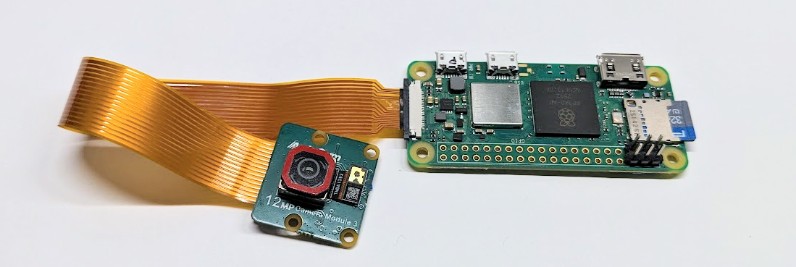
This is the camera I’ve selected to use: https://amzn.to/43sCfHv, Arducam Module 3, with the 75 degrees FoV.
Raspberry Pi Zero 2 W w/ Arducam Module 3.
The paper “doc” points to this:
https://docs.arducam.com/Raspberry-Pi-Camera/Native-camera/12MP-IMX708/
More info at https://github.com/raspberrypi/rpicam-apps/
and the official doc is at https://www.raspberrypi.com/documentation/computers/camera_software.html#building-libcamera-and-rpicam-apps
Minimal Setup
$ sudo vim /boot/firmware/config.txt
Change 1 to 0:
camera_auto_detect=0
In section [all], add:
dtoverlay=imx708
$ sudo reboot
By default, the Raspberry Pi OS Lite installs a minimal set of “rpicam” applications:
$ dpkg -L rpicam-apps-core
/usr/bin/rpicam-hello Starts a camera preview stream and displays on screen
/usr/bin/rpicam-jpeg Runs a preview window, captures still images
/usr/bin/rpicam-raw Captures raw (unprocessed Bayer) frames from sensor
/usr/bin/rpicam-still Emulates features of the original raspistill application
/usr/bin/rpicam-vid Captures video
To try it out, this validates the camera is visible:
$ rpicam-still --list-cameras
Available cameras
-----------------
0 : imx708 [4608x2592 10-bit RGGB] (/base/soc/i2c0mux/i2c@1/imx708@1a)
Modes: 'SRGGB10_CSI2P' : 1536x864 [120.13 fps - (768, 432)/3072x1728 crop]
2304x1296 [56.03 fps - (0, 0)/4608x2592 crop]
4608x2592 [14.35 fps - (0, 0)/4608x2592 crop]
and this displays a preview in full screen on the HDMI output, using X or Linux Direct Rendering Manager (DRM) if there’s no X -- obviously you won’t see anything if Raspberry Pi is headless over SSH, but if you have an HDMI connected, you will see something even in non-X console mode:
$ rpicam-hello
$ rpicam-still -t 0
$ rpicam-vid
Sensor Datasheet
Unfortunately there’s no official public datasheet for the IMX708.
That’s a common issue with all these hardware components: the datasheet is always “confidential” for whatever reason. We can only hope to find “leaked” versions of it in a few years circulating on some random web site. I don’t really see the value of that. It’s too bad because things like the OV2640 datasheet here make for a fascinating read. YMMV.
The closest info I could find is this: https://github.com/Hermann-SW/imx708_regs_annotated
This site also links to other datasheets worth reading.
Stream Video over Network
That’s our main goal: produce an H264 video stream from the Raspberry Pi and display it remotely on a tablet.
We don’t need to guess much, as it is all covered here in details:
The first command I tried did not work, so I’ll show it and explain why:
$ rpicam-vid -t 0 -n --codec libav --libav-format mpegts -o tcp://0.0.0.0:1990?listen=1
⇒ ERROR: *** Unrecognised codec libav ***
I looked up which lib was missing, but in fact that’s not what this message indicates. The “--codec” argument can be set to “h264, libav (if available), mjpeg or yuv420” according to the “--help” documentation. But, and that’s the kicker, we have a Raspberry Pi OS Lite install that comes with the tool compiled without libav support. So it’s not a matter of “which apt lib is missing”. We just need to install the full version of the tool:
$ sudo apt install rpicam-apps
and after that, the command above will work fine.
The full version of the “rpicam-apps” package requires a minimal X setup, and it also installs the kitchen sink (QT, OpenCV, OpenAL, Mesa-GL, etc).
With VLC, open a Network Stream to URL “tcp://<ip addr>:1990” and that worked like a charm.
Even though that works, that’s not what I really want. Instead I want an RTSP stream, and I want it to work with my TCM software on the Android tablet -- the issue with VLC is that it doesn’t auto-reconnect when the stream breaks, and TCM takes care of reconnections -- TCM is designed to be a kiosk mode always-on video viewer.
The Raspberry Pi doc above tells us how to produce an RTSP stream:
$ sudo apt install vlc
$ rpicam-vid -t 0 -n --codec libav --libav-format mpegts --width 1280 --height 720 -b 400kbps -o - | cvlc -vvv stream:///dev/stdin --no-sout-audio --sout '#rtp{sdp=rtsp://0.0.0.0:8554/stream1}'
and in VLC, open a Network Stream to URL “rtsp://<ip addr>:8554/stream1”.
Resolution and MPEG bitrate are controlled by the rpicam-vid binary, whilst VLC is in charge of wrapping that video into an RTSP stream and generating the proper SDP description.
In you need to customize them, the options for VLC “sout” are explained here:
https://wiki.videolan.org/Documentation:Streaming_HowTo/Advanced_Streaming_Using_the_Command_Line/
Stream Video to TCM
Now, when I tried this, it worked with VLC on the desktop or on Android, yet my TCM android app failed to connect to the stream. Why?
TCM uses the native Android FFMpeg audio-video libraries. It opens an RTPS stream, so in theory it should work. Thus the first thing I did is enable the FFMpeg verbose mode and check logcat for errors, and that’s what I found:
ffmpeg Error: [rtsp @ 0xb40000759966da90] method SETUP failed: 461 Unsupported transport
In TCM, we set “format=rtsp” and “rtsp_transport=tcp”.
OK first I need a crash course on RTSP: it’s RFC 2326; the client starts by using an HTTP-like protocol to query the server using a “DESCRIBE” verb to get the SDP (RFC 4566, Session Description Protocol) that describes the media. Then the client uses a “SETUP” verb to connect, and the server replies with the connection information.
The easiest way to debug this is to check what’s going on the “wire” directly. So I reach for the usual Wireshark, and since I’m in a remote SSH I’ll use “termshark” instead -- a text UI wrapper that works like Wireshark (and a shout out to Termshark, that stuff is awesome!)
$ sudo apt install wireshark termshark
“Allow non-superusers to capture packets → YES”
(or run $ sudo dpkg-reconfigure wireshark-common later if said no earlier)
$ sudo usermod -a -G wireshark pi
So first let’s try with VLC since this one works:
$ termshark -i wlan0 -f="portrange 8554-8556"
Tshark/Termshark is a bit slow yet it works well, the UI is easy to use (? for help), it even has mouse selection:
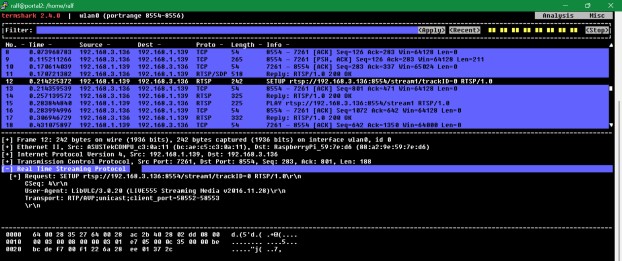
You probably can’t read the screenshot above, so let me paraphrase it: there’s a “DESCRIBE” request and the RPi cvlc server replies that the media stream is available at stream1/trackID-0. Then there’s a “SETUP” request on that, and if I zoom in on the response:
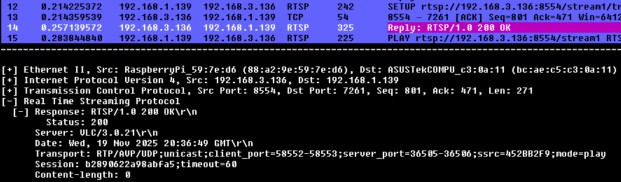
The Client (VLC) tells the Server (the RPi) which parameters are acceptable for the data transmission, and the response packet has the info selected by the server:
- “unicast” is a point-to-point connection (by opposition to multicast), so that’s expected.
- “RTP/AVP” is RFC 3551.
- AVP means Audio/Video Profile; the RTP thing describes “payload types” (e.g. codecs);
- /UDP: the communication is essentially over UDP.
Although VLC sees a steady stream, there is no more traffic at all in Wireshark because it all happens on different ports.
Now when I try the same thing with TCM, I get a different behavior:
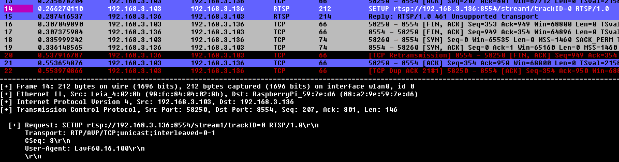
That’s hard to read, so here’s the screen copy:
Request: SETUP rtsp://192.168.3.136:8554/stream1/trackID=0
RTSP/1.0
Transport: RTP/AVP/TCP;unicast;interleaved=0-1
CSeq: 3
User-Agent: Lavf60.16.100
and the response is 461 Unsupported Transport.
Now that explains what I saw in TCM’s logcat:
ffmpeg Error: [rtsp @ 0xb40000759966da90] method SETUP failed: 461 Unsupported transport
We can notice that the request from TCM mentions “RTP/AVP/TCP”.
That “interleaved” transport mode is described here: https://datatracker.ietf.org/doc/html/rfc2326#section-10.12
When checking the VLC rtp documentation:
“proto=tcp… accept TCP connections at the specified IP address (dst=) and use RFC 4571 RTP framing, not implemented yet”
Yep that seems to match.
So here’s what happens: when I coded the first version of TCM, I was only dealing with IP Sec cameras. In TCM, I use “ffmpeg rtsp_transport=tcp”. This is the “lower-level transport protocol used for RTSP streams”. RTSP can be over TCP or UDP, with UDP being the default. And in this case, the VLC server (sout) documentation indicates that they do not support TCP at all.
We thus can’t change the “cvlc” server command line to request sending over TCP. Thus we want to change TCM to use UDP. Since that’s my own Android app, that’s an easy change: I added the option to entirely reconfigure each FFMpeg stream and override all the defaults I use with a simple “name=value;name=value” string in camera preferences.
That way, I can now configure this camera with “rtsp_transport=udp”.
And… tada! that now works:
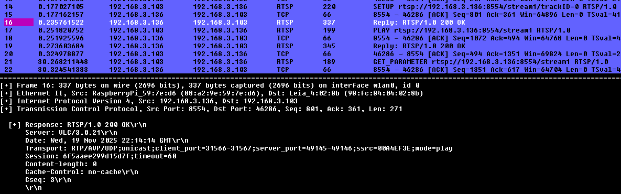
It’s hard to read but the SETUP response now configures a transport of type “RTP/AVP/UDP”, just like it did with the VLC client. The video latency is not too bad, seems to be around 2-3 seconds like with VLC.
And that’s how I ended up with this quick result test at the Randall Model Railroad:
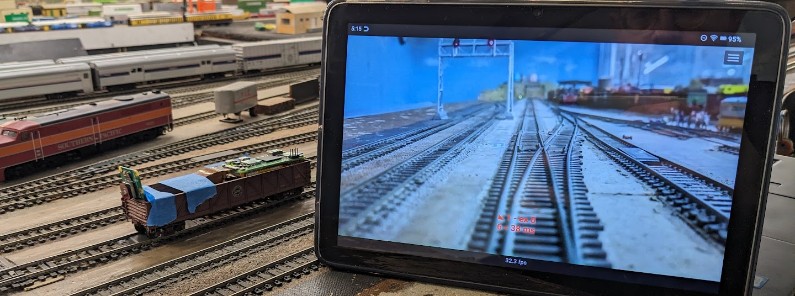
That currently displays a 1280x720 @ 30 fps with no problem. The 400 kb/s choice is terrible during motion, I’ll need to play with these parameters to see what works best.
Next, let’s deal with the Raspberry Pi power.