Track Cam Monitor |
2024-05
"TCM" (a.k.a. 'Track Cam Monitor') is designed to monitor a train staging yard or remote tracks out of sight. This kiosk mode Android application displays feeds from RTSP cameras.

The application is tailored to view specific train tracks on the Randall Museum Model Railroad. In our case, the goal is to display the mainline that is on the other side of the mountain, which operators typically cannot see when they are located at the main operating yard. In this case, a tablet is mounted to the fascia of the layout where the operators are and that allows them to view the track on the other side of the layout.
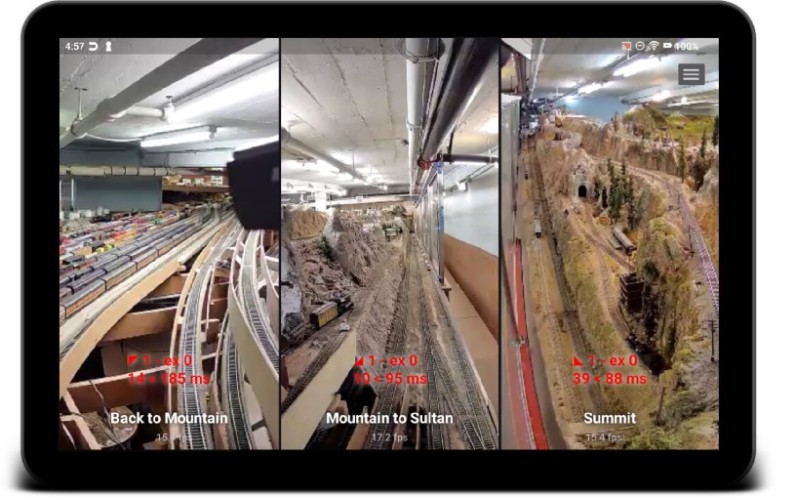
For a description of the deployment on the Randall Museum Model Railroad, please check out the blog announcement here.
The same system could be useful, for example, to view hidden staging yards.
There are a number of Android applications that already allow one to view multiple cameras RTSP feeds, and so there's no novelty in that.
The following features are unique to TCM:
- It's designed to work with no user interaction. In our case, our operators are not techies and we can't expect them to boot a tablet and run a specific app. Instead, the TCM application is designed to automatically start when the tablet boots.
- The application disconnects from the video cameras automatically when the tablet power is off. In our case, the museum's layout is only powered from 9am to 5pm. When the layout's power is off, the tablet automatically stops processing video and enters a sleep mode to preserve battery. The video connection automatically restarts when power is turned back on the next day. This is designed so that layout operators and museum staff have no need to bother turning on the tablet during normal business days.
- The video feeds can be rotated, zoomed, and panned. These are recorded in settings.
TL;DR: the most important feature is to have a "hands free" kiosk-like behavior: the tablet is powered by the model train layout. The tablet stays on all the time and goes into sleep mode when the layout is turned off. Videos start streaming automatically when the model train layout is powered on.
Implementation Notes
The app is designed to run on a 10-inch tablet in landscape mode. It should work on other devices, however no effort has been made so far in optimizing the screen layout for different form factors.
The minimum supported API level is 23 (a.k.a. "Android 6", codename M).
To achieve the desired "unattended" behavior, the tablet is typically configured as follows in the Android system settings:
- Display > Screen Timeout : 30 seconds or 1 minute.
- Display > Screen Saver : None.
- Security > Screen Lock : None.
- Developer Options > Keep Screen On When Charging : Off.
Ideally the tablet would be powered via a USB brick to the same power source that powers the cameras monitoring the model train layout.
The tablet is to be treated as an "appliance" -- it only run this application, and should be considered unsecured. This can be achieved two ways:
- Do not have a specific account on it. E.g. add an account to install the TCM app via Google Play then remove the account (Android Settings > Accounts).
- Or alternatively, use a dedicated throw-away gmail account just for this purpose and then make sure that the Google Play account has a PIN to install paid apps (GP does not support a PIN to install free apps).
Note that this is not a locked kiosk mode: Anyone with access to the tablet can change anything. Publicly visible devices at the Randall Museum Model Railroad are placed behind a locked glass.
Start at Boot / Home Launcher
On Android API 23 up to 28 (Android 6/M to 9/P), the implementation of the "Start at Boot" feature uses the typical Android pattern:
- A "Boot Receiver" is declared in the app's AndroidManifest to respond to BOOT_COMPLETED.
- This requires the RECEIVE_BOOT_COMPLETED permission.
- The Boot Receiver class checks the app's preferences. If the preference to start at boot is activated, the MainActivity is started using an intent.
This mechanism however is no longer possible starting with API 29 (Android 10/Q).
Instead, on Android 10+ devices, the application can be set as the default home launcher via the preferences. This is done using the RoleManager which only allows the application to set itself as the home launcher app by presenting a chooser dialog to the user.
There is no way to use the same RoleManager to "reset" the home launcher to the default tablet app. Instead, when the preference is unchecked in TCM, the Android Settings "Default App" screen is shown, which allows the user to change the launcher app.
As indicated in the previous section, even when the app is set as a home launcher, the user can still "escape" the app by accessing the settings from the drop-down notification bar. This is not a locked kiosk mode: Anyone with access to the tablet can change anything.
Foreground/Background Behavior
This app does not use a background service. All behavior happens only when the main activity is in the foreground.
- When the activity starts, the power state is checked, and the video streaming and processing can start if and when the tablet is properly powered.
- When the activity is active and the tablet is on battery power, video streaming and processing pauses, in order to allow the tablet to sleep and save on battery.
- When the activity is paused, all processing is also stopped.
Wake Lock and Power Saving Behavior
The goal is to have the tablet (almost) always turned on. The layout at the Randall Museum Model Railroad is turned on by the museum staff at 9am and turned off at 5pm. The tablet is powered by a switched outlet connected to the layout's main power. Consequently the tablet will only be charging during that time, and thus video processing should only occur when the tablet is powered.
To monitor the charging state, Android provides the ACTION_BATTERY_CHANGED intent and the BatteryManager isCharging() function (only API 23 and above). We do not need any AndroidManifest broadcast to monitor the charging state outside of the application's lifecycle.
This is periodically checked using a thread in the main activity.
When the main activity runs and the tablet is actually powered, video streaming automatically starts. At that point, the app also acquires a wake lock to ensure that the tablet does not go into sleep mode. An early implementation used the View keepScreenOn attribute for that purpose however that has turned out to be oddly unreliable when the app is set as the main Home app. Instead, the implementation has been switched to use the Wake Lock API, with the associated WAKE_LOCK permission.
Privacy Policy
Alf-Labs Android App Privacy Policy:
- The application complies with the privacy and security policies set by the Android Play Store.
- The application does not collect nor transmit personal or sensitive user data.
The following non-exclusive list explains Android permissions usage:
- Internet: This application accesses your network to stream RTSP video from the cameras configured by the user. There is no automatic discovery on local network cameras.
- Wake Lock: This application maintains a “wake lock” and a “wifi lock” to prevent the device from sleeping when streaming. The lock is released when the app is not streaming.
- Receive Boot Completed: On Android API 23 up to 28, this allows the app to start automatically once the device boots, if configured to do so by the user in the preferences.
~~
Legal attribution:
Google Play and the Google Play logo are trademarks of Google LLC.
~~
~~